Revelator is a comprehensive music management platform that brings together catalog management, distribution, rights, royalties, finance, and analytics on one unified platform. This guide walks through each section of the platform to help you get oriented and understand what's available to you.
How accounts are structured
Revelator uses a parent-child account model:
- Your account (the parent) is the Organization — typically a label or distributor. This is where you manage platform-wide settings, clients, and all core workflows.
- Workspaces (children) belong to the labels or artists you work with. Workspaces can create catalog and submit music to you, with you maintaining full oversight and control.
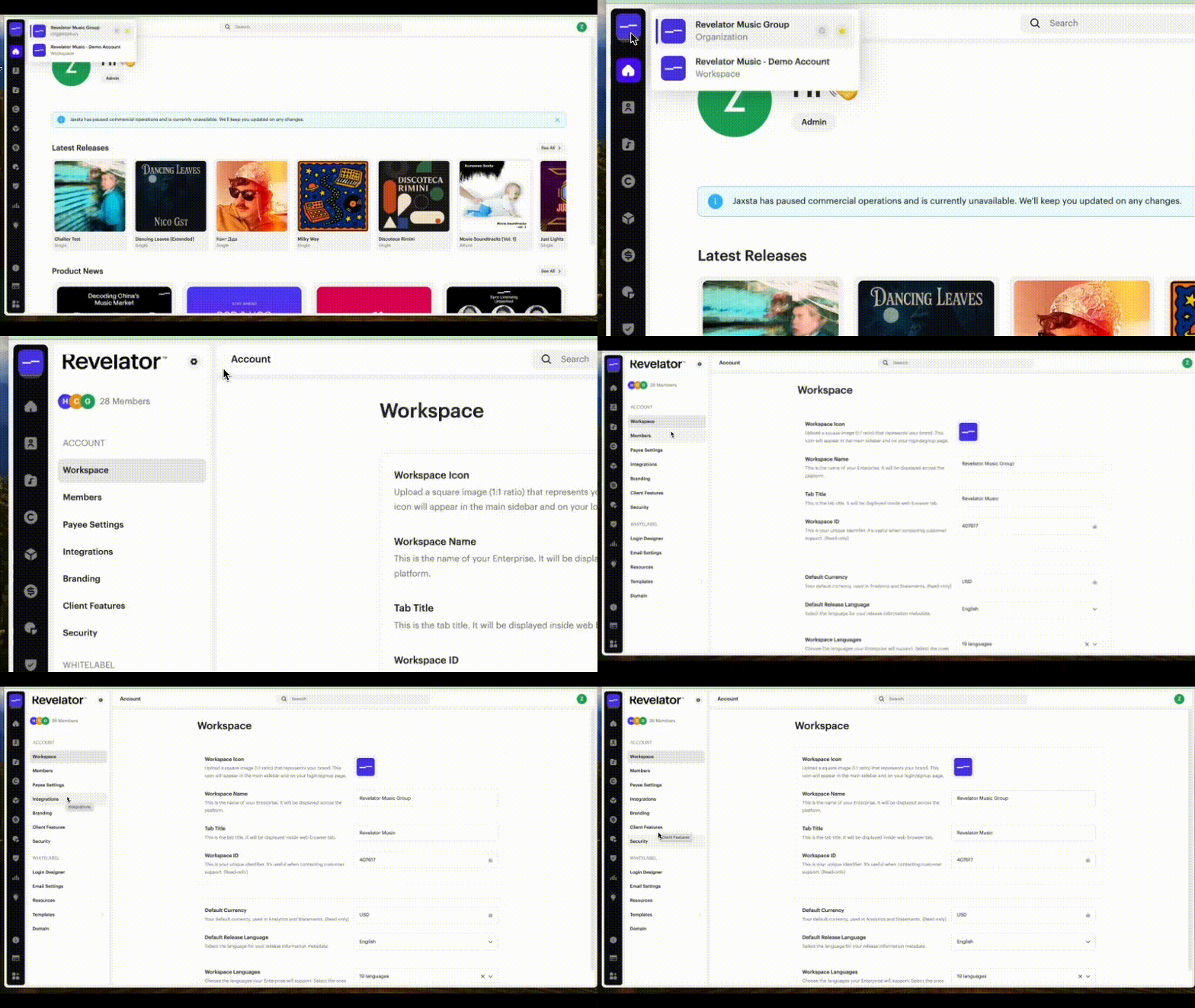
| Note You can switch between your Organization and any Workspace using the Account Switcher in the top-left corner of the platform. |
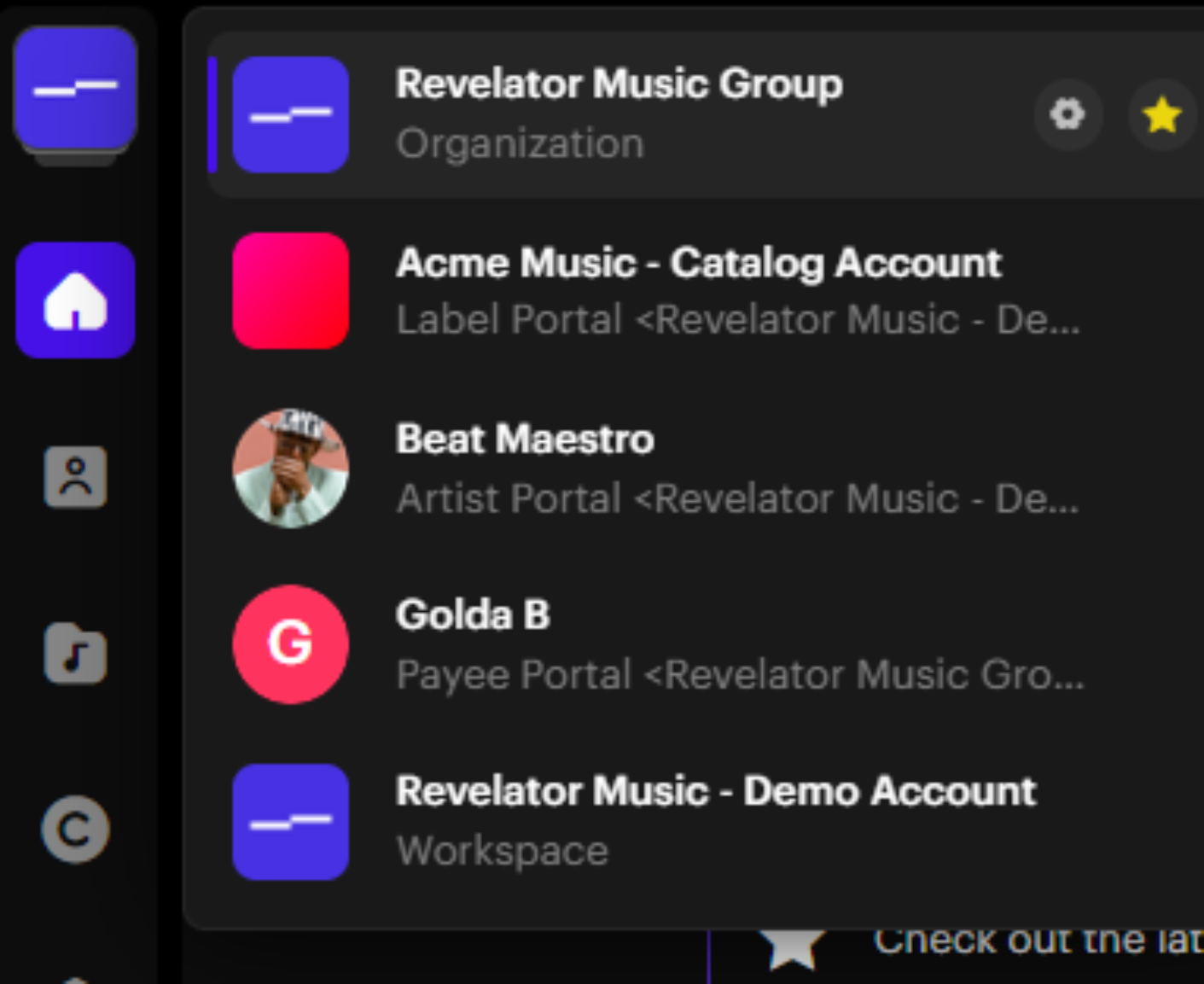
Account Settings
Account settings control how your Organization is configured. Key areas include:
- Organization — your account name, logo, default currency, and default release language. Revelator Pro supports 19 languages for the platform interface.
- Team Members — invite internal staff and assign granular permissions. You can give specific team members access to only the sections relevant to their role, such as supply chain access without financial reporting.
- Pay Settings — configure how you receive payments from distributors and how you pay out to rights holders. Set your statement language, statement currency, and statement email address.
- Integrations — view all connected DSPs and distributors in your supply chain, and connect MCN accounts for YouTube Content ID.
- Branding — upload logos and videos, set your accent color, and configure dark or light theme variants.
- White Label — set a custom domain, enable Google Login options, customize your login and signup screens, configure email sending, upload custom terms & conditions and distribution policy documents, and toggle which platform features are visible to your clients.
- Security — set up multi-factor authentication (MFA) settings and sign-up protection, especially if you have open signups enabled.
- Resources — configure links to your FAQ, help/support page, and distribution agreement that appear within the platform for your clients.
→ How to Enable Google Login for Your White-Label Account
→ How to Assign Trust & Safety Permissions to Your Team
→ Understanding Your Account: Organization, Workspace & Portals
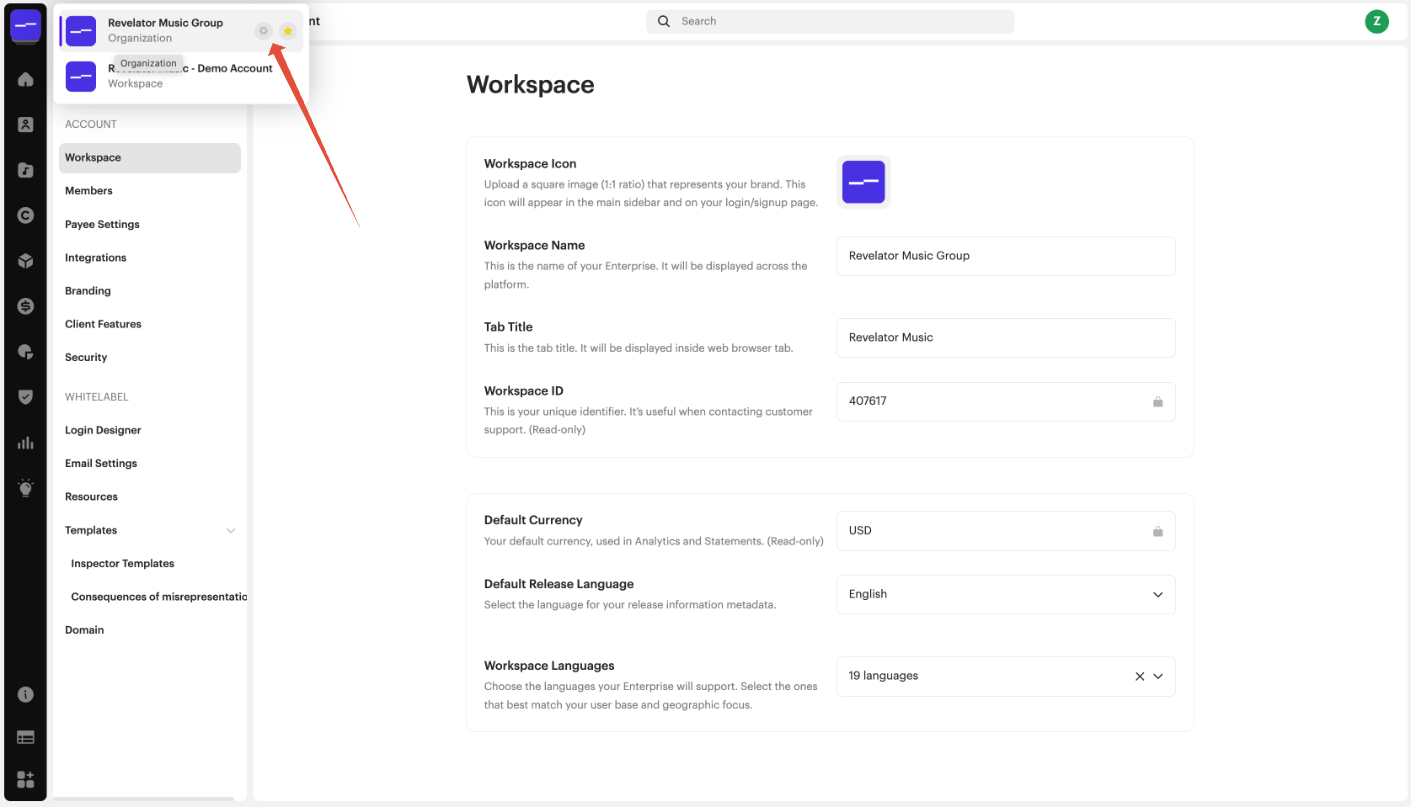
Home
When you log in, the Home screen gives you a quick snapshot of your Organization:
- Latest Releases — your most recently added or updated releases, shown as a visual grid
- Product News — announcements and updates from the Revelator team about new features and platform improvements
Clients
The Clients section is where you manage all Workspaces within your Organization. Each entry shows key information: the number of members, their Trust Score, lock status, and any notes you've added.
From here you can:
- Create new Workspaces using the New Client button
- View and manage individual Workspace details
- Access Client Feedback — a collected view of any feedback or flags associated with Workspaces
Workspaces are the child accounts owned by your labels or artists. Their catalog, distribution activity, royalties, and statements are all managed under your Organization.
→ How to Create and Invite a New Client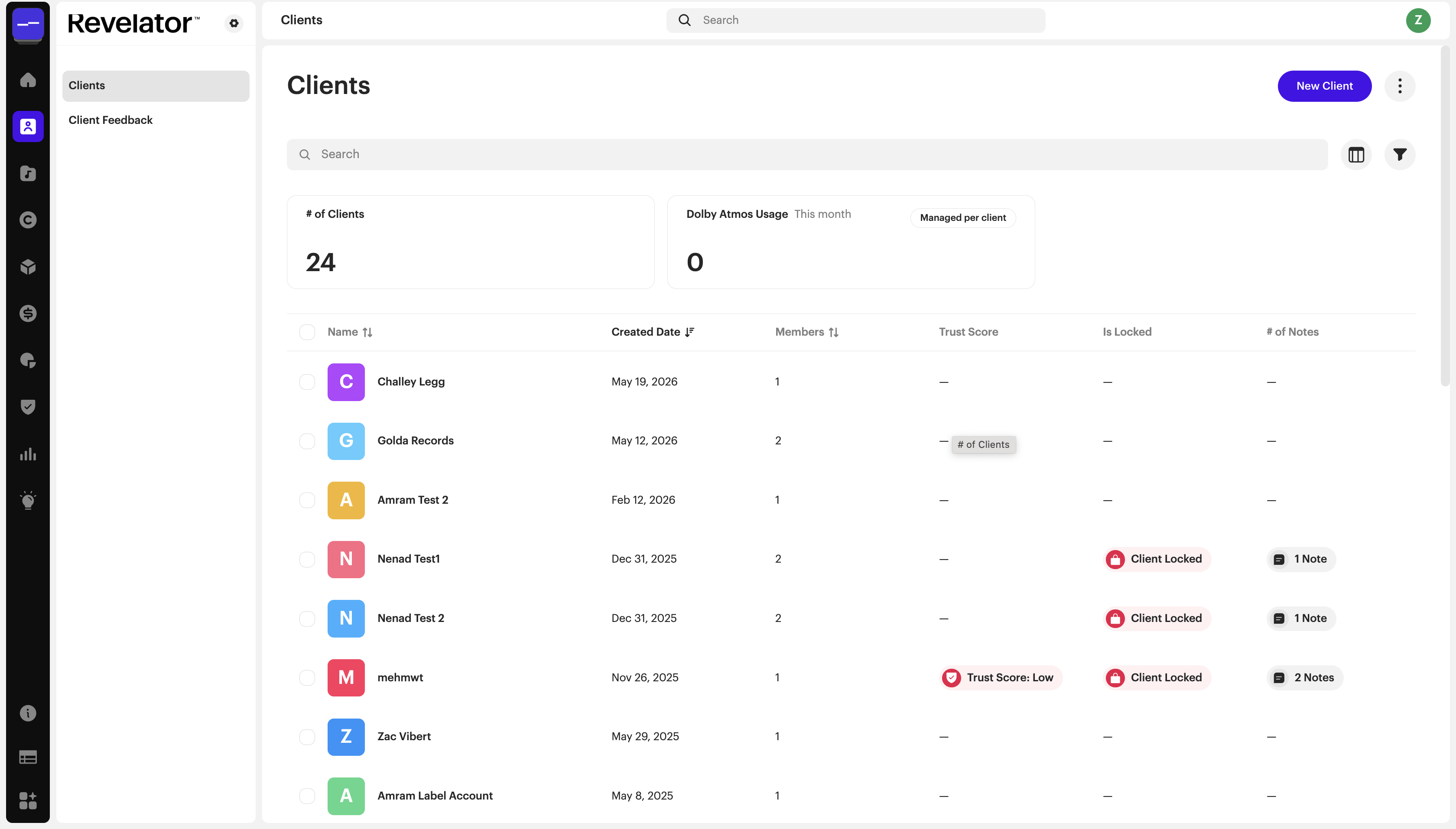
Catalog
The Catalog section is the core of the platform, where all your music content lives. It is organized into four areas: assets, products, contributors, and UGC platforms.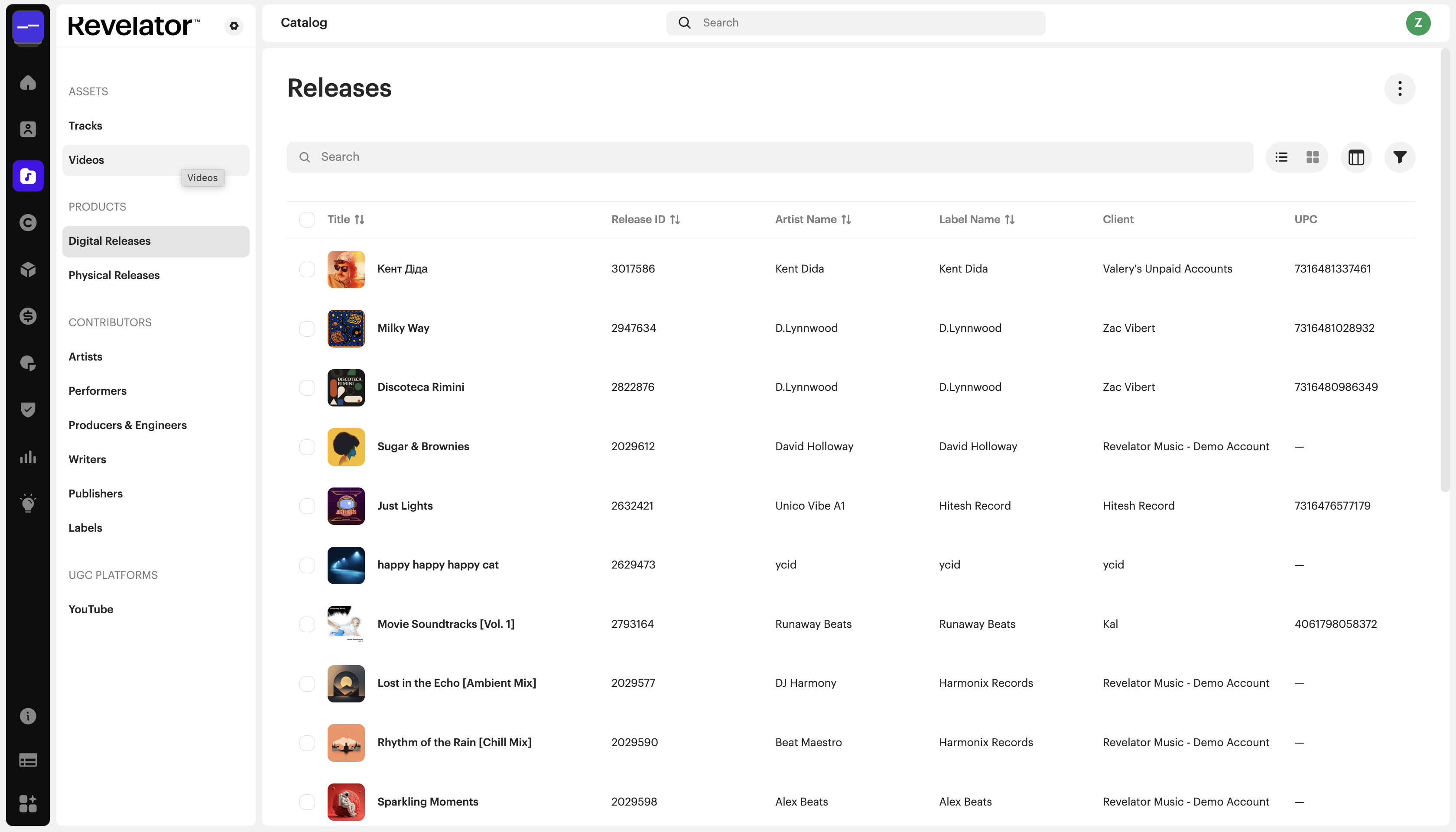
Assets
Assets are the content items you manage and distribute through the platform, including audio tracks and videos.
Tracks are individual audio recordings. Each track has a detail page with:
- Full metadata and credits
- Rights holders and contributors
- Audio file management, including stereo, HD, and Dolby Atmos
- Embedded analytics, including consumption, engagement, playlist, and revenue data
Videos are managed separately from audio and follow a similar structure.
→ Delivering Dolby Atmos Music: A Complete Guide
→ Replacing an audio file after delivery
Products
Digital Releases are your albums, EPs, and singles. A release detail page includes:
- Overview, metadata, and track listing
- Artwork and UPC/catalog IDs
- Rights settings to control which use types are permitted, such as streaming, download, and UGC
- UGC policies to monitor, track, or block use of your content on user-generated content platforms
- Distribution flow to send to DSPs, set territories, choose pricing tiers, and set release dates
- Distribution history, showing a log of everything that has been delivered or taken down
- Embedded analytics at the release level
Physical Releases allow you to manage physical product catalogs — vinyl and CDs — with the option to link to an existing digital release and carry over its metadata.
→ How to Set Streaming, Download, and UGC Rights For Your Release
→ How to Create a Digital Release in Revelator
→ How to Manage Physical Releases in Your Catalog
Contributors
Manage Artists, Performers, Producers & Engineers, Writers, Publishers, and Labels from dedicated sections. Each contributor profile links to their full discography and includes analytics across their catalog.
→ How to change an artist's name
→ How To Add Contributor Roles
UGC Platforms
YouTube is managed as its own section within Catalog. Here you can:
- Connect and manage MCN accounts and YouTube channels
- Link videos to channels
- Set up channel-level royalty splits separately from your audio DSP contracts
→ Linking YouTube Channel to Revelator's MCN
→ How to Set Up YouTube Channel Royalties & Reporting
→ Understanding Your YouTube Options on Revelator
| Note Your catalog can be viewed in list, grid, or column view. Use the filter panel to search by client, metadata language, or other criteria. Analytics are embedded throughout the platform, so you can access track-level, release-level, and artist-level analytics directly from those objects, not just from the main Analytics section. |
Rights
The Rights section is where you define how revenue from your catalog is distributed to rights holders.
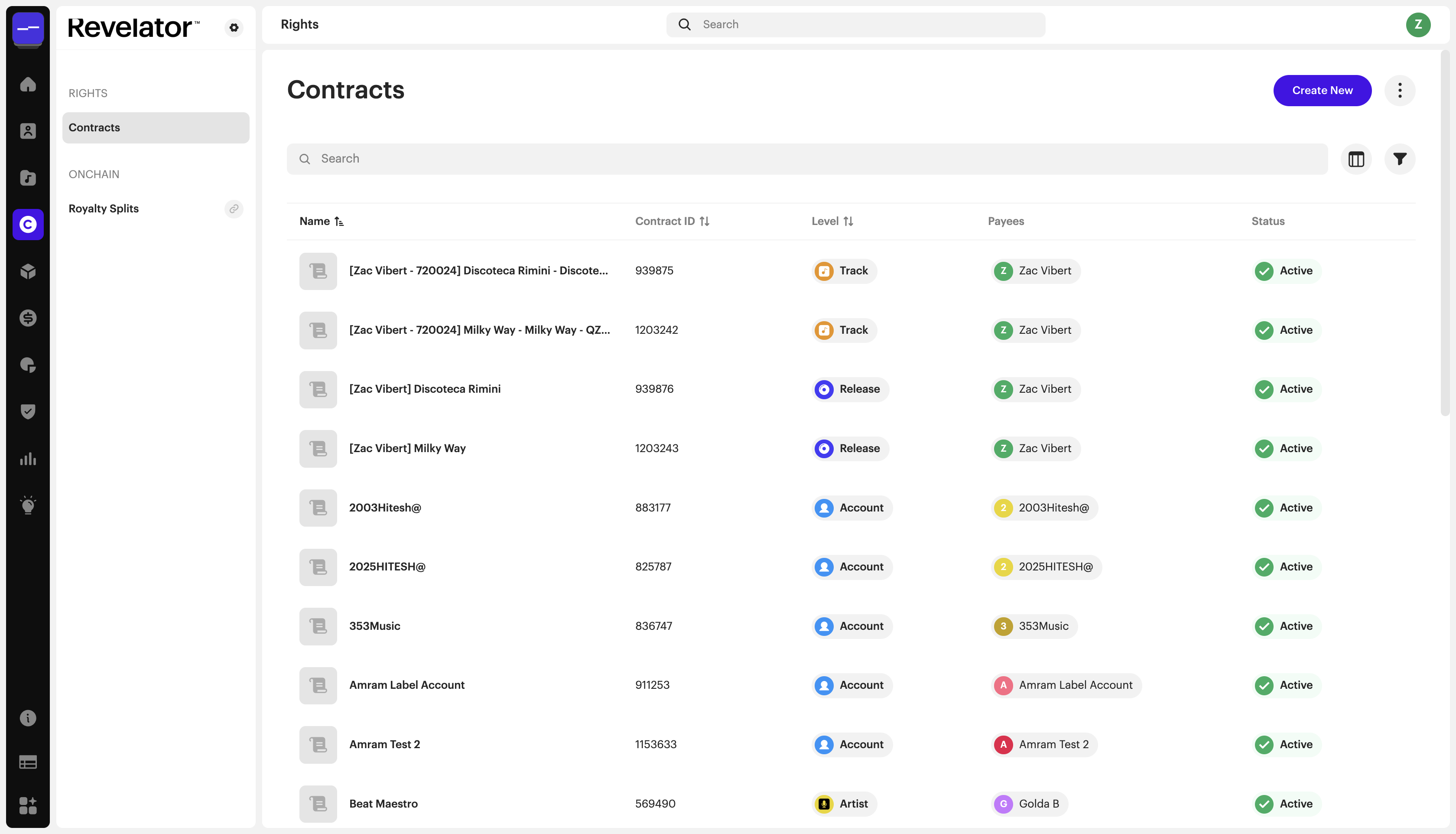
Contracts
A contract sets the business logic for royalty payments. Each contract has three components:
Assets — which catalog the contract applies to. You can set a contract at any level: account, label, artist, release, or track.
| Note More specific contracts take precedence over broader ones. A track-level contract will override an account-level contract for that specific recording. |
Terms — the payout rate and the conditions under which it applies. You can define multiple terms within a single contract, for example: 75% payout for streaming in the US, 60% for rest of world, or different rates by service type, format, territory, or channel.
Payees — who gets paid and what percentage of the income defined by the terms. You can add multiple payees per contract, each with their own share.
When you add a payee, you can invite them to a Payee Portal — a dedicated login that gives them view-only access to their assets, statements, and analytics, without access to catalog management or supply chain features.
→ Understanding Contracts
→ Royalty Splits: How to Share Royalties with Collaborators
Royalty Splits (OnChain)
Blockchain-based royalty split functionality, available for Enterprise accounts.
Distribution
The Distribution section manages the flow of your catalog to DSPs and handles the quality control process before anything goes live.
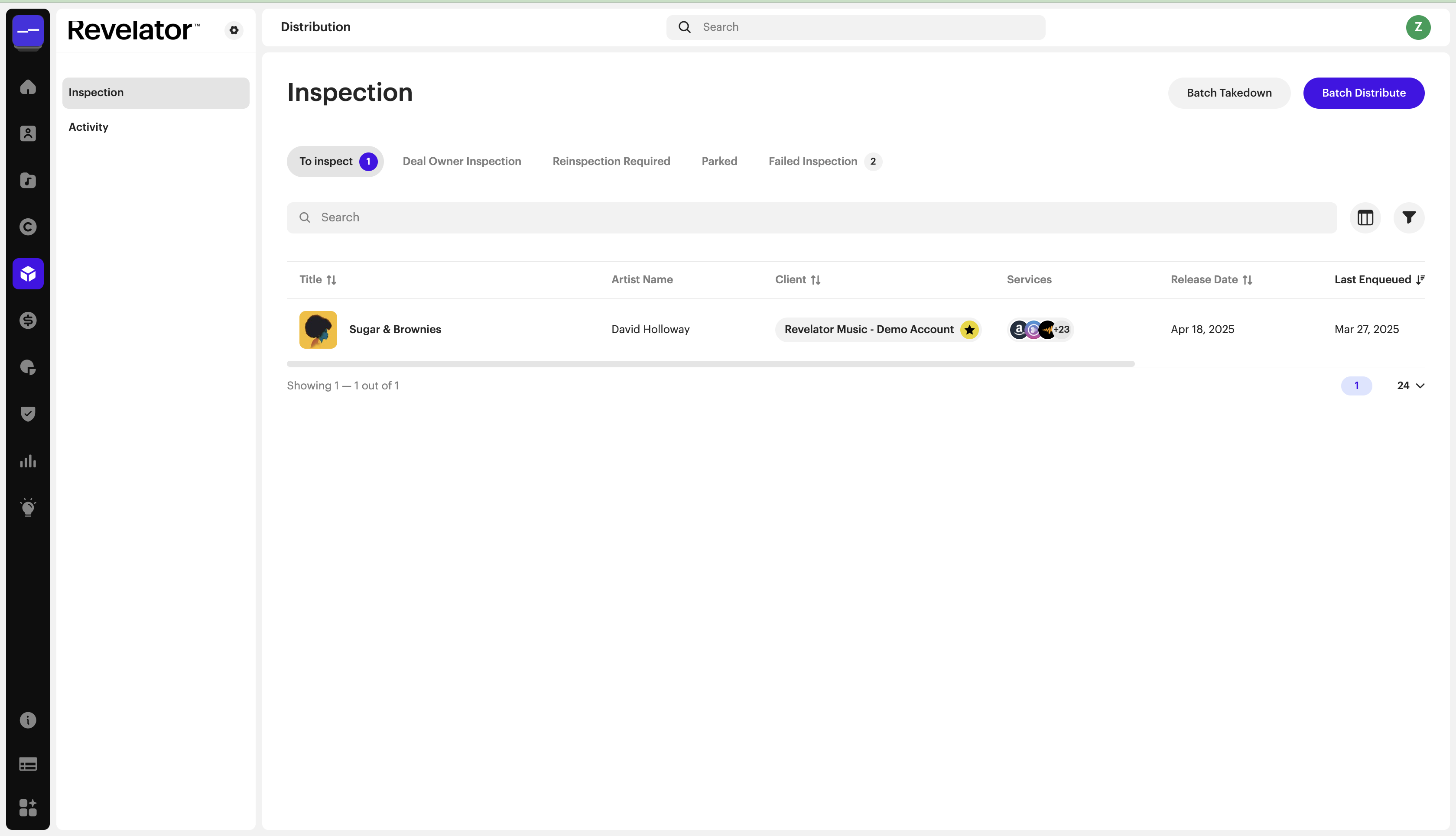
Inspection
When a Workspace submits music, it arrives in the Inspection queue — your QA/QC layer before releases reach the market. The Inspector uses ACR Cloud to automatically flag potential issues, including AI-generated content, cover songs, remixes, and samples.
| Queue tab | What it contains |
|---|---|
| To Inspect | New submissions awaiting your review |
| Deal Owner Inspection | Releases pending review from the relevant deal owner |
| Reinspection Required | Items flagged for another pass |
| Parked | Releases that have been held |
| Failed Inspection | Releases that didn't pass QC |
From the Inspection queue, you can:
- Approve releases and move them to distribution
- Fail and return a release to the Workspace with specific feedback, such as trademark violation or incorrect metadata
- Whitelist trusted Workspaces to fast-track their submissions
- Impersonate a Workspace to see the platform from their perspective when troubleshooting
→ Release Metadata Inspection — Best Practices
→ Which DSPs does Revelator support?
Batch Distribute and Batch Takedown
From the Distribution section you can send or remove catalog in bulk:
- Batch Distribute — select releases by label, artist, or individually, choose the destination DSPs, and send in a single action
- Batch Takedown — remove catalog from DSPs in bulk, with the same level of selection flexibility
Activity
A log of all distribution events — what's been sent, updated, or taken down — on a per-release basis.
Finance
The Finance section handles incoming revenue from DSPs and distributors.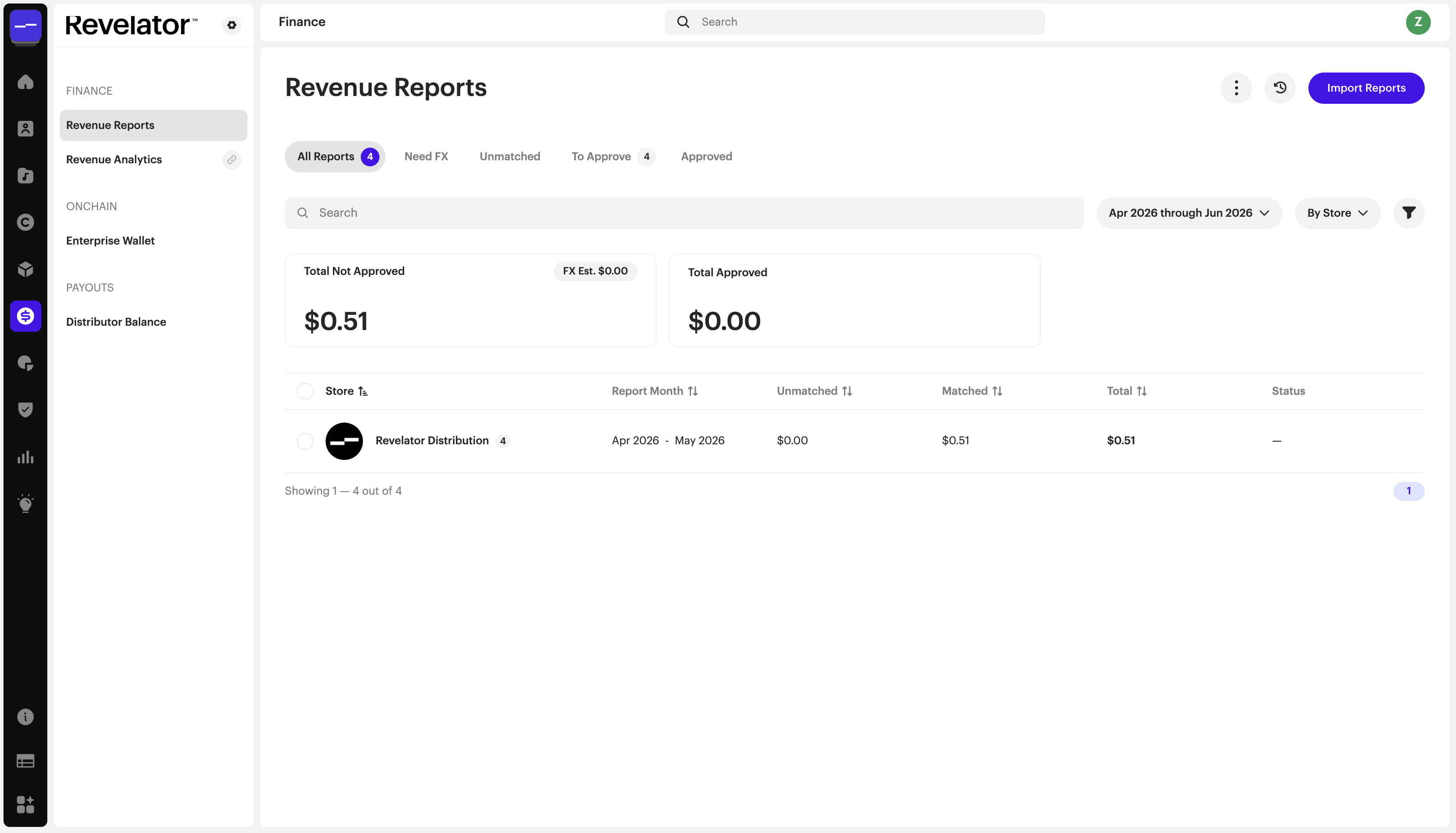
Revenue Reports
Import sales reports from DSPs and distributors. Reports move through a four-stage approval workflow: Need FX → Unmatched → To Approve → Approved. A matching tool helps reconcile unmatched lines where a UPC or ISRC is missing.
| Note Rights holders cannot see revenue until a report has been approved. Approving a report makes its data available downstream in Analytics and Royalties. |
| Note If the Trust & Safety team identifies potentially infringing or violative assets in your distribution report, the associated royalties are withheld from your Revelator Distribution. You can review exactly which assets were flagged, what type of violation was assigned, and how much revenue was withheld, directly inside your Revelator Distribution reports. |
→ Reviewing Revenue Withheld in Your Distribution Reports
→ FAQ: Revenue Report Processing
→ Fixing Unallocated Revenue
Revenue Analytics
A visual dashboard of your revenue across DSPs, territories, formats, and time periods. Interact with the visualization, apply filters, and export any view as a CSV.
Distributor Balance
A record of all payments received from your distributor, including a full history and any open balances.
Royalties
The Royalties section handles the end-to-end process of calculating what you owe rights holders and managing payments.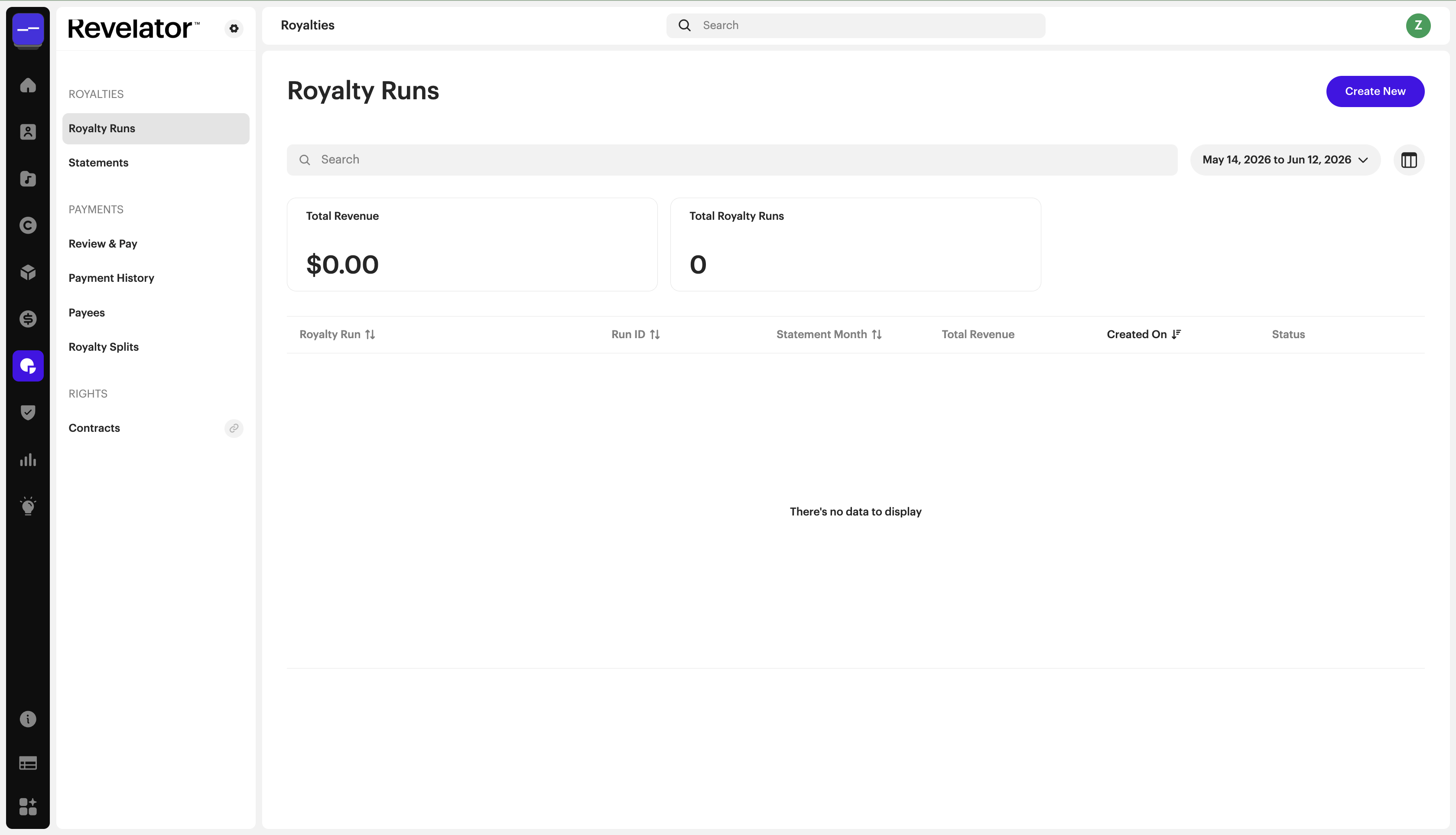
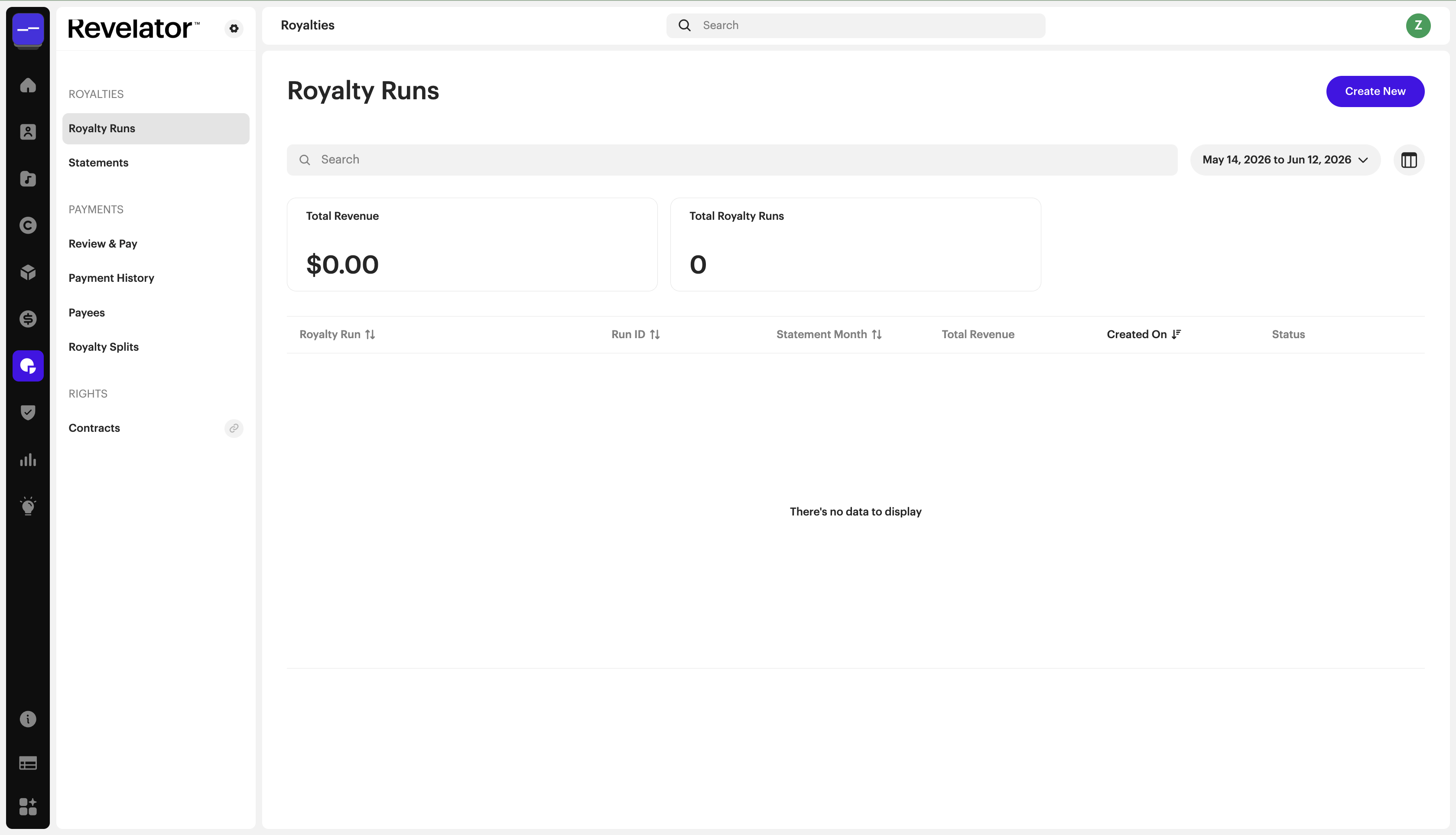
Royalty Runs
A royalty run aggregates approved revenue reports for a given period (monthly, quarterly, or semi-annual) and calculates payee earnings based on your contract logic. To create a run: name it, choose the reporting period, select the approved reports to include, then preview and confirm. Once processed and approved, statements are automatically generated for all affected payees.
→ Royalty Run & Statements Guide
Statements
Statements are generated when a royalty run is approved. Each statement includes a downloadable flat file, an HTML view, and an analytics visualization. Statements can be approved, unapproved, emailed, or deleted and rerun. Payees with portal access can see their statements once you've approved them.
| Warning If you need to correct a statement after payments have already been issued, contact Revelator support before making any changes. If payments haven't gone out yet, you can unapprove the statement, fix the underlying issue (such as correcting the sales report or contract), and rerun only for the affected reports. |
→ Approving and Sending Royalty Statements
Payees
Each payee record shows the assets and contracts connected to them, their full transaction history, and their current balance. You can manually add advances, expenses, payments, and adjustments — all factored into the next royalty run.
→ Payees in a Parent-Child Setup
Review & Pay
Once statements are approved, bulk-pay all payees in one action. Payments are grouped by gateway — Revelator supports Tipalti for cross-border payments and Bamboo for payouts in Brazil and Latin America.
→ Making Payments with Tipalti
→ How To Set Up Bamboo in Revelator
Payment History
A full log of all payments processed through the platform.
Trust & Safety
The Trust & Safety section provides tools to monitor your catalog for fraud and policy violations.
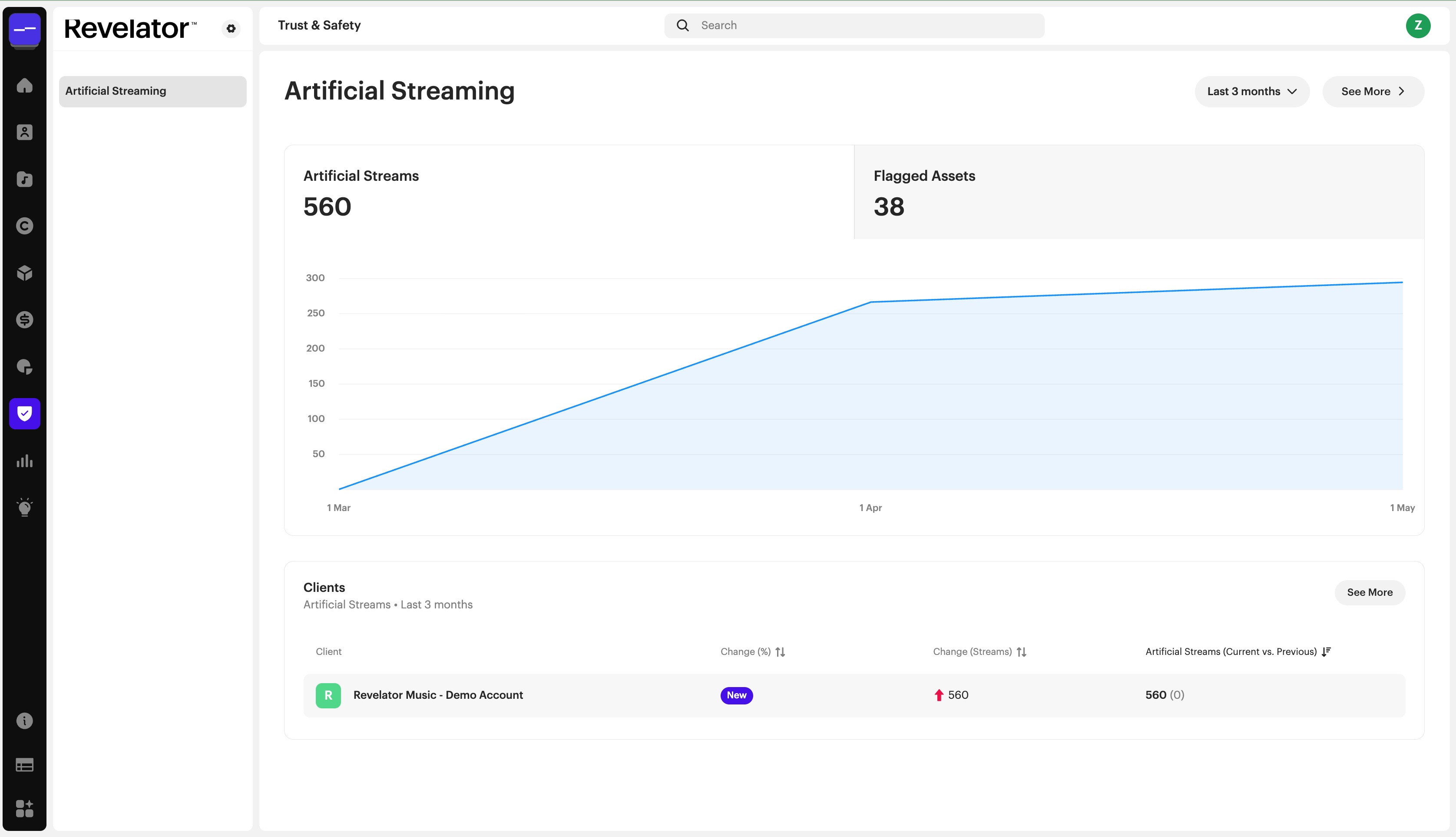
Artificial Streaming Detection
The platform flags releases showing patterns consistent with artificial stream inflation, drawing from data reported by DSPs. View flagged content by release or asset, filter by DSP and market, and drill down to specific tracks.
| Note This section is actively evolving. UGC match, claiming, and dispute resolution features are in development. |
→ What is Artificial Streaming and How To Avoid It
→ How to Assign Trust & Safety Permissions to Your Team
Analytics
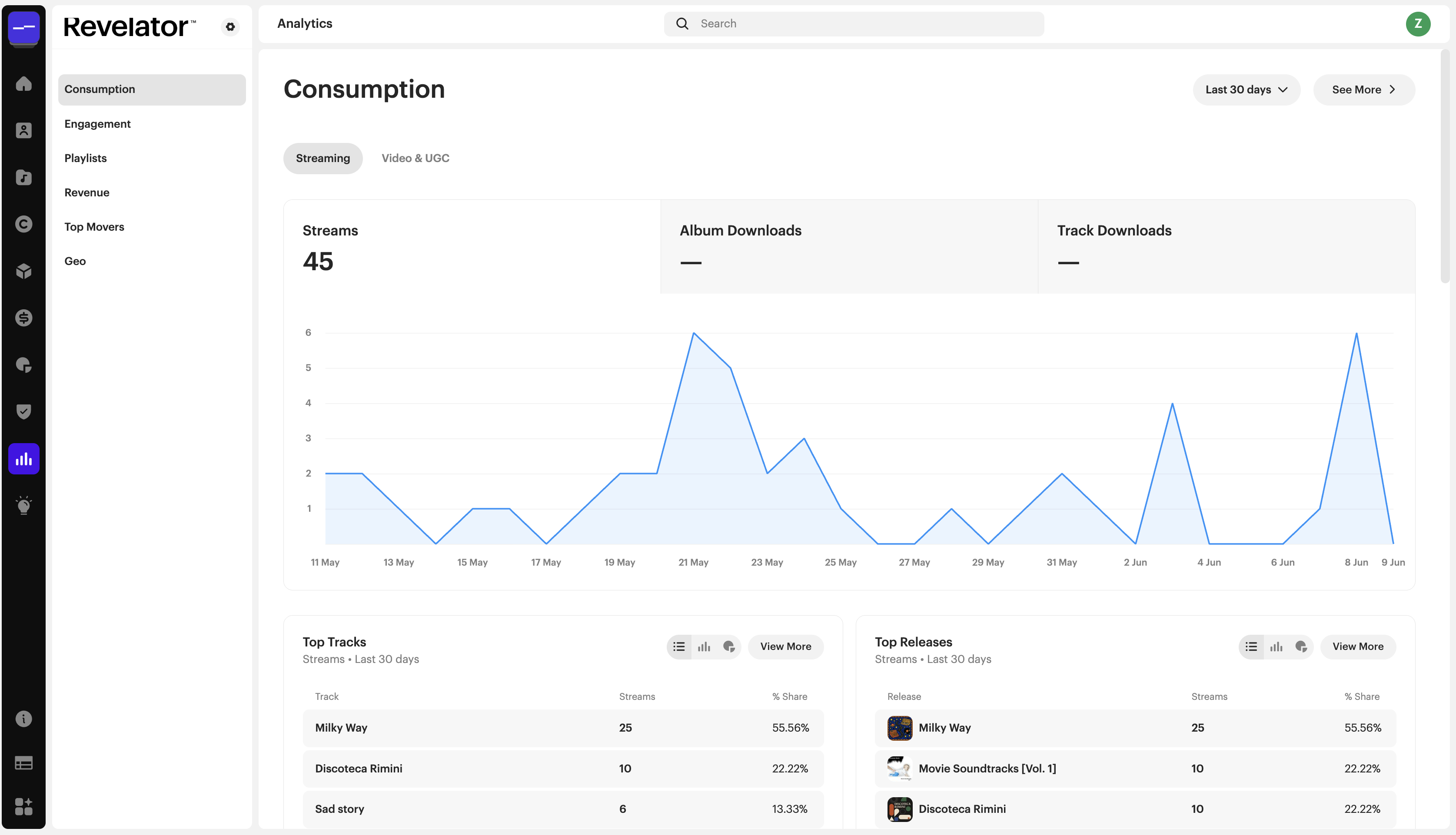
The Analytics section gives you a detailed cross-catalog view of how your music is performing on DSPs (such as Spotify, Apple Music, Deezer, and SoundCloud) and UGC platforms (YouTube, TikTok, and Instagram). The same analytics are also embedded within individual artist, release, and track pages throughout the platform.
| Section | What you can see |
|---|---|
| Consumption | Streaming and video/UGC performance. Includes top tracks and top releases with trend charts. Toggle between streaming and Video & UGC views. |
| Engagement | Listener behavior including skip rates, completion rates, and sub-30-second stream counts. |
| Playlists | Playlist placement and movement data across DSPs. |
| Revenue | Revenue broken down by DSP, territory, format, and time period. |
| Top Movers | What's rising and falling across your catalog. Filter by track or artist and choose a time window, such as the last 7 days. Useful for quickly identifying momentum shifts. |
| Geo | Geographic view of consumption and revenue, visualized on a map. See where your catalog is gaining traction by country or region. |
All analytics views support filtering, segmentation, visualization customization, and CSV export.
→ Understanding Video & UGC Analytics in Revelator
→ How to Use Playlists Analytics
→ How to Use Top Movers Analytics
→ Understanding Engagement Analytics
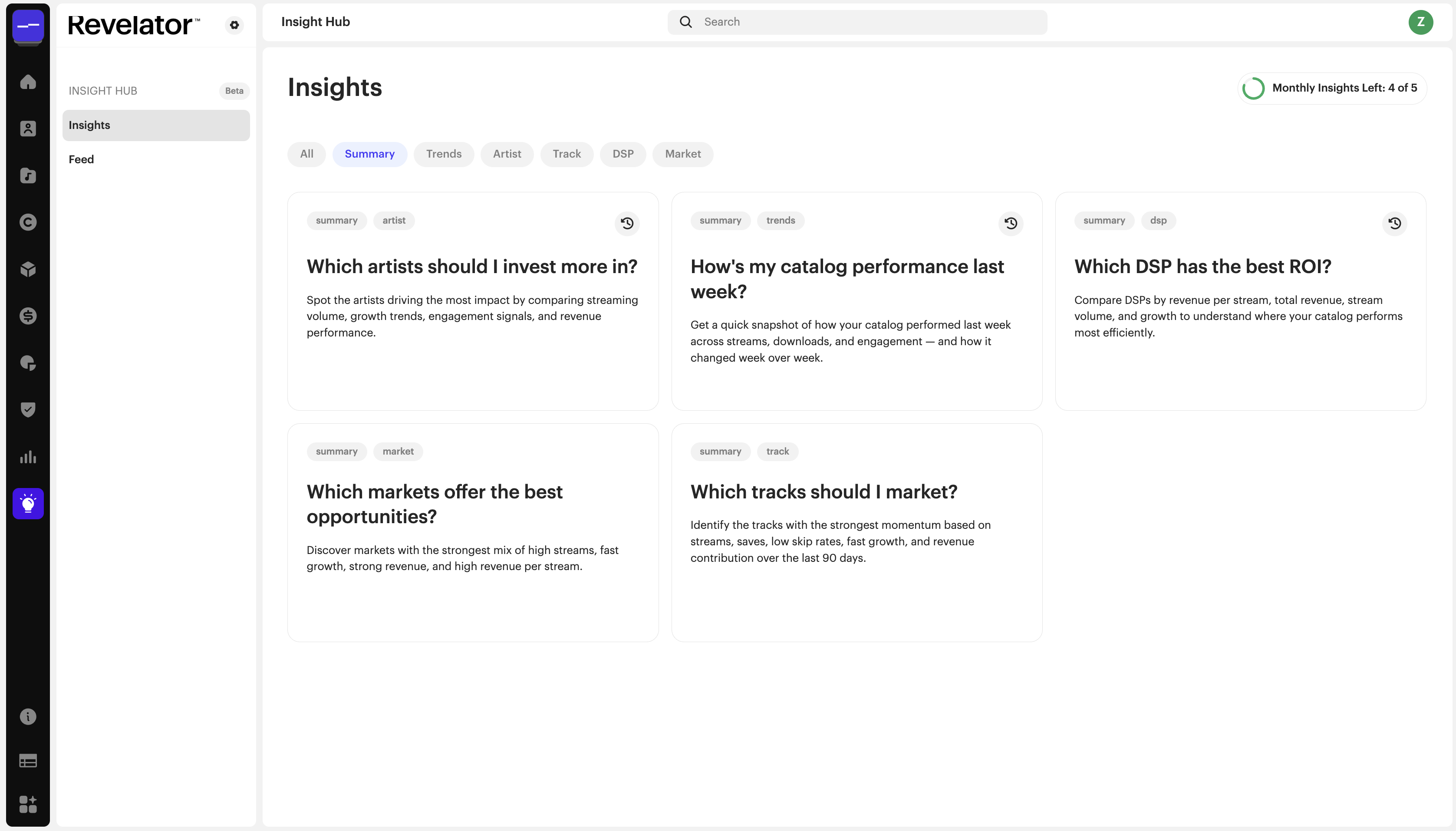
Insights Hub
An AI-powered feature that answers common questions labels and artists have about their catalog. Choose from a curated set of questions and the platform generates a report with the relevant metrics and analysis.
| Note This feature is new and will continue to expand as Revelator develops its AI capabilities. |
Frequently asked questions
Why do I see "Session is expired?
Your login session has timed out. Revelator tries to restore it automatically. If the message stays on screen, sign out and sign in again.
What does "Rate limit exceeded" or "Request timeout" mean?
Too many requests were sent in a short time, or the request took too long to complete. Wait a minute and try again. For large bulk actions, try a smaller selection.
Related articles
Was this article helpful?
That’s Great!
Thank you for your feedback
Sorry! We couldn't be helpful
Thank you for your feedback
Feedback sent
We appreciate your effort and will try to fix the article