You can configure Multi-Factor Authentication (MFA) and email verification in your Revelator account. These settings add an extra layer of security to your login workflows, helping protect user accounts.
Revelator's White Label customers can also enable CAPTCHA protection, which adds an extra safeguard against automated login and sign-up activity.
This guide covers how to activate each MFA option, how to configure it, and what the key terms mean.
1. Multi-Factor Authentication (MFA)
Multi-Factor Authentication allows you to require an extra step for users logging in, such as entering a code from an authenticator app, receiving a confirmation email, or a text message.
How to enable MFA
- Go to Settings → Security.
- Under Multi-Factor, select one of the following policies:
- Disabled: No additional step is required.
- Enabled: An additional verification step is required when a supported method is configured.
- Required: Users must configure an MFA method to log in.
- Select your preferred authentication method for your customers:
- Authenticator App
- Email Verification
| Note At least one MFA method must be selected to add an extra verification step to protect your users' accounts. |
2. CAPTCHA settings (White Label only)
CAPTCHA helps confirm that a user is human, protecting your platform from automated spam or abuse.
How to enable CAPTCHA
| Important You must first create and register your domain with the selected provider to receive valid keys. |
- These keys are generated directly in either the reCAPTCHA or hCaptcha provider's admin console:
- Google reCAPTCHA Admin Console
- hCaptcha Dashboard
- Set your threat score threshold (we recommend 0.5)
References:
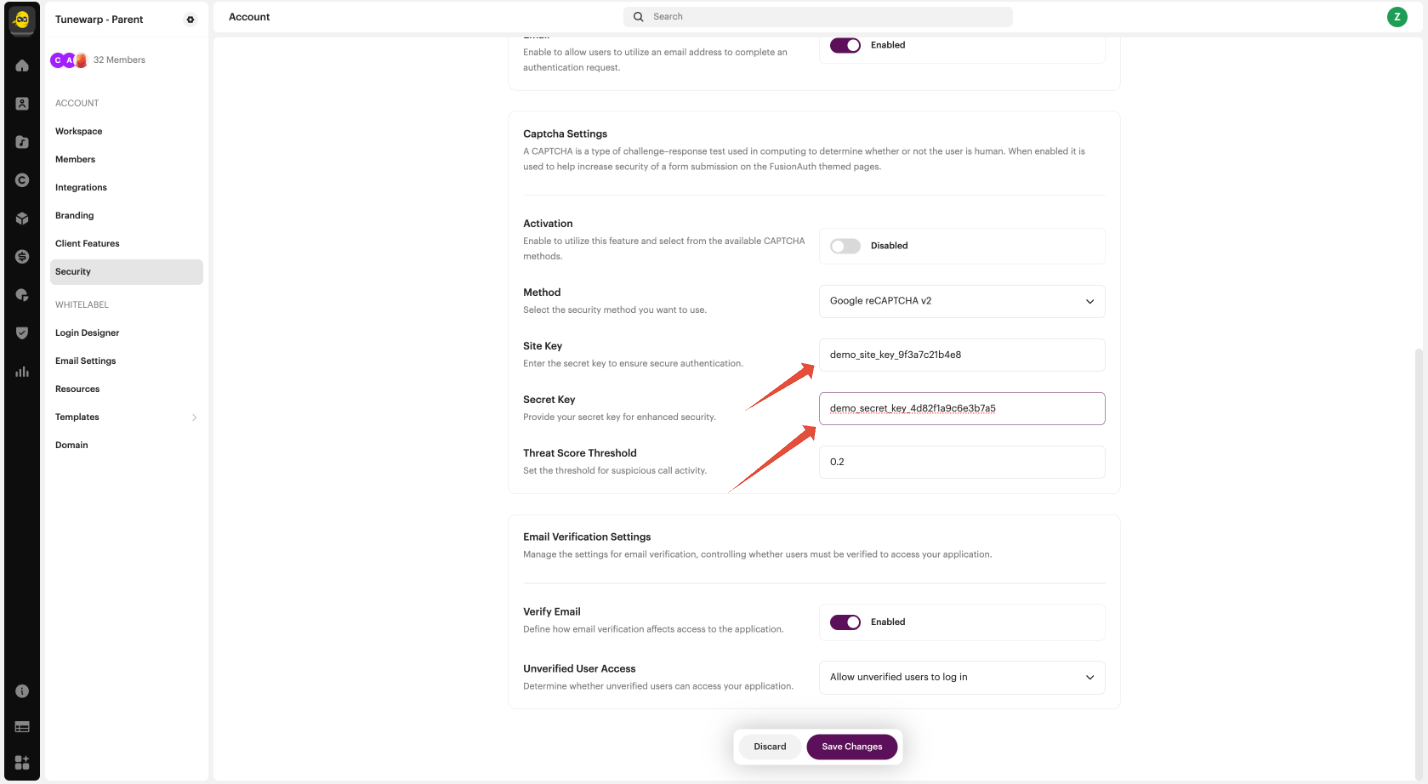
Once that is set up, go to your Security Settings in the platform and click on Captcha Settings:
- Toggle Activation to “Enabled”.
- Choose a CAPTCHA method:
- Google reCAPTCHA v2 or
- hCaptcha (only if your specific setup supports it).
- Enter the Site Key and Secret Key for the selected CAPTCHA provider.
3. Email verification settings
You can choose whether users must verify their email address before accessing the platform.
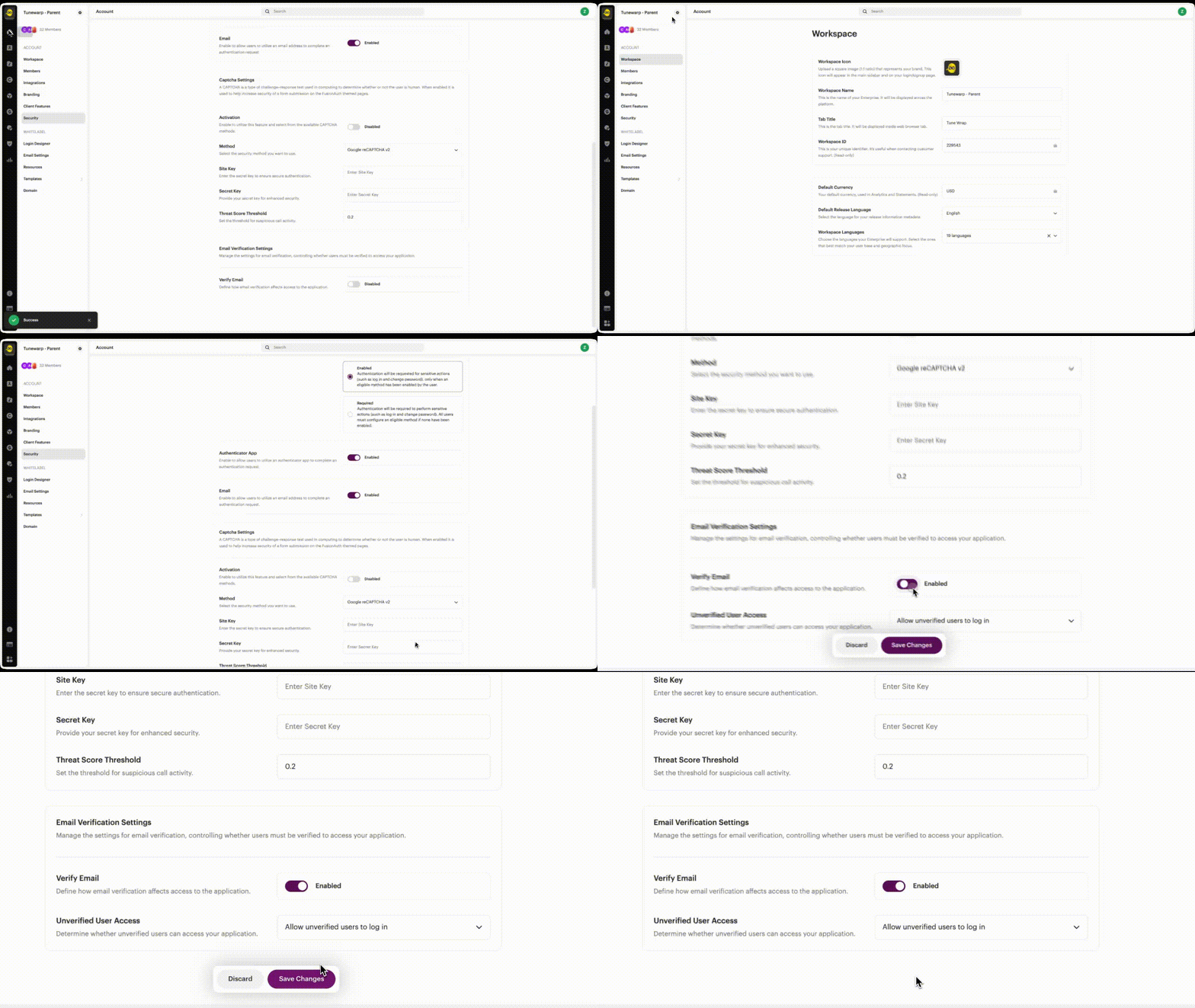
Go to Account → Security, then scroll down to the Email Verification Settings section.
How to enable email verification
In the Email Verification Settings section:
- Toggle Verify Email to “Enabled”.
- Users will receive an email to confirm their address before gaining access.
4. Save your settings
After configuring the above options:
- Click Save Changes at the bottom of the Security page.
- Test login settings to ensure everything works as expected.
FAQ
Where do I get my CAPTCHA Site Key and Secret Key?
You must register your platform's domain with a CAPTCHA provider (Google or hCaptcha). After registering, you will receive a Site Key and Secret Key to paste into the settings.
- Google reCAPTCHA: recaptcha.google.com
- hCaptcha: dashboard.hcaptcha.com
What does “Threat Score Threshold” mean?
This sets the minimum acceptable score for user interactions. If the CAPTCHA provider returns a score below your threshold, the system may block access or challenge the user.
The score is a measure of risk, with:
- 0.0 = very likely a bot
- 1.0 = very likely a human
If you're unsure, a threshold of 0.3 to 0.5 is commonly used.
Was this article helpful?
That’s Great!
Thank you for your feedback
Sorry! We couldn't be helpful
Thank you for your feedback
Feedback sent
We appreciate your effort and will try to fix the article