Overview
Revelator will Report and Pay the Sales of your entire catalog according to our Revelator Distribution Reporting Schedule and Payout Schedule & Supported Payment Methods by Country.
Once you have received the funds, our system allows you to process these Reports through our Royalty Engine, which applies the Terms defined in your Contracts, generating Royalty Statements for each Payee. You can then take advantage of our Payouts Integrations (PayPal and Tipalti) to distribute the Royalties to your Payees.
| Table of Contents |
Sales Report Processing
FX Rate and Taxes
Note
|
Adjustments
Note
|
Unmatched Lines
| Important The system will NOT allow you to approve a Sales Report if there are any Unmatched Lines in it! |
| Tip You can detach the Unmatched Lines from a Sales Report for later reprocessing. This will create a separate Sales Report, allowing you to move forward with the Approval process and deal with the Unmatched Lines later on. |
| Important If you are detaching Unmatched Lines, make sure you apply any applicable FX Rate, Taxes and Adjustment before detaching, as the detached lines will inherit these. |
Approval
Pre-Run Preparation
Contracts Terms and Status
| Important In Enterprise and API Plans, you can set a custom default Payout Rate. For Launch, Growth and Scale Plans, the default Payout Rate is 100%. |
Tip
|
Note
|
Errors from Previous Royalty Runs
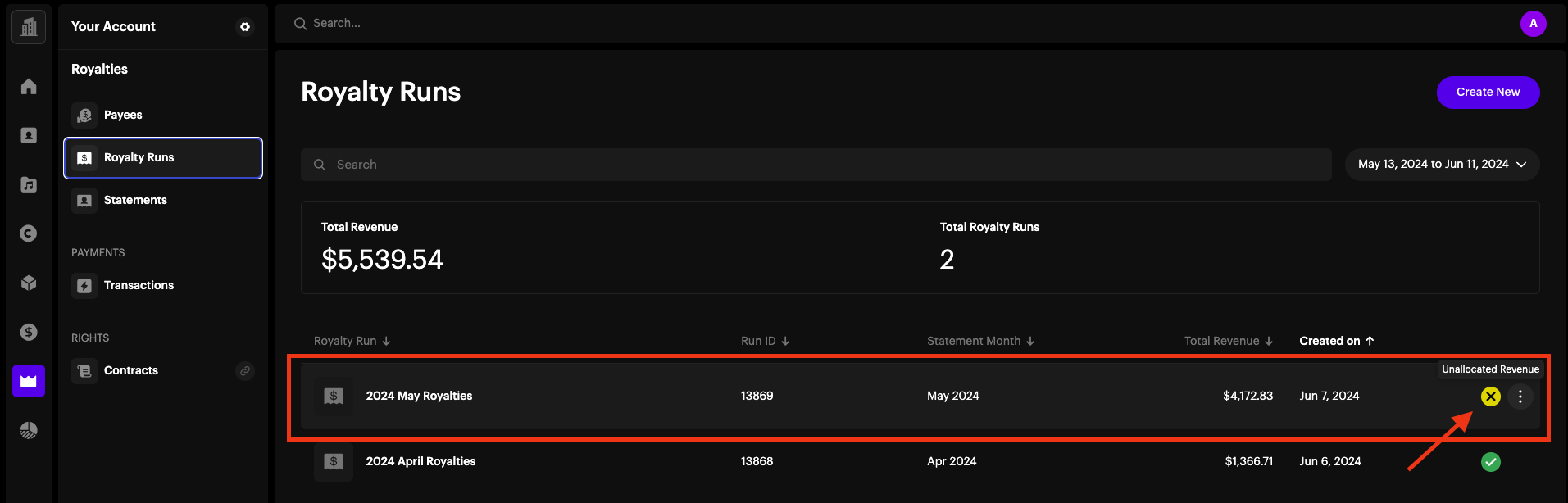
| Important Any error and/or Unallocated Revenue from a previous Royalty Run will persist on future Runs unless you correct them and reset those Royalty Runs. You can identify Runs with Unallocated Revenue by looking for Runs with a Yellow X icon:
|
Transactions in-between Runs
| Note In order to have your Payee's balance up to date, make sure you add any Transaction that was incurred in between reporting periods. The Transaction will either deduct from or add to the Payee's Balance depending on its type. |
| Transaction type | Effect on Payee Balance |
|---|---|
| Adjustment | Can be either positive (add) or negative (deduct) |
| Advance | Will deduct the amount from the Payee's Balance |
| Expense | Will deduct the amount from the Payee's Balance |
| Fraud | Will deduct the amount from the Payee's Balance |
| Payment | Will deduct the amount from the Payee's Balance |
| Refund | Will add the amount to the Payee's Balance |
| Subscription Offset | Will deduct the amount from the Payee's Balance |
| Tax | Will deduct the amount from the Payee's Balance |
| Tip You can import Transactions in batch by filling out our Batch Transactions Import Templateand importing the CSV in the UI. |
Withholding Rules for Payees
If you want to account for Tax Withholding across Payees, we can apply Tax Withholding rates to your Payees based on the following parameters:
- Payee tax country
- Country of transaction
- Delivery type - there is a current limitation where we do not have a withholding option for download transaction types, though we plan to add withholding for downloads as well down the line.
If you would like us to set withholding rates for Payees to be applied in your Royalty Runs based on these parameters, you would need to specify the designated parameter information for each Payee together with the corresponding rate.
| Note With Tax Withholding Rules as part of the Royalty Run, we currently support the tax showing up in the statement detail file (CSV), but not the summary HTML page as of yet. |
Royalty Run
Statement Approval
| Important You must Approve a Payee's Royalty Statement for the information (Balance, Statement file, Revenue Analytics) to be accessible in your Payee's Account! |
Payout Balances
Preparation
| ImportantYou must set up your Payouts Integrations (PayPal, Tipalti) in order to make payments through the platform. Please see: |
| TipYou can trigger an email to invite all Payees who have not been invited yet, as well as a reminder for them to add a Payment method. Payees will be able to select a Payment method ONLY AFTER you have completed the corresponding payment service integration in your Parent Account. |
Triggering Payments
Note
|
| Tip If you have Payees that are not paid through PayPal or Tipalti, you can export payee balances to make payments with your external payment service and then import the Payment transactions back into your account: Exporting Payee Balances for External Payout Provider |
Related articles
Was this article helpful?
That’s Great!
Thank you for your feedback
Sorry! We couldn't be helpful
Thank you for your feedback
Feedback sent
We appreciate your effort and will try to fix the article